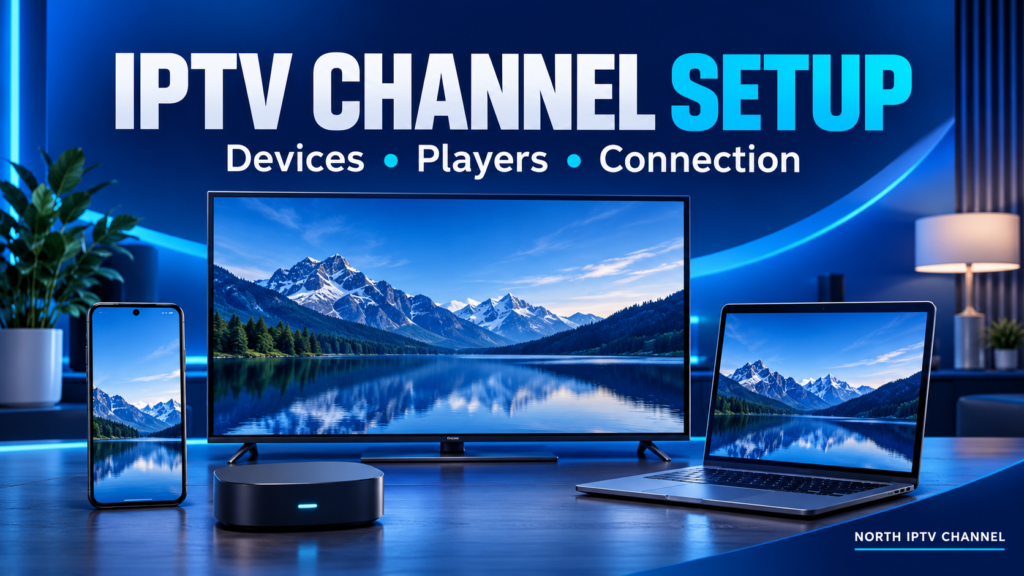
A reliable IPTV channel setup needs three things: a supported device, a compatible player and valid access details for your service. Installing an app is only one step. You also need to confirm the account format, load the catalogue and test the channels you intend to watch.
This guide explains the setup process across common device types without assuming that every app uses the same menus. For North IPTV Channel’s device-specific instructions, open the IPTV tutorial page. Menu names can vary with the device, operating system and player version.
Before you start your IPTV channel setup
- Check access: Make sure your account or trial is active and confirm your connection allowance.
- Confirm your device: Record its model and operating system, particularly for smart televisions.
- Choose a supported player: Ask which app and account format work with your subscription.
- Prepare the network: Connect the device to a stable home network and check that another app can play video.
- Keep account details private: Enter credentials only in the intended player or a verified support process.
If you have not yet chosen your channels, use the channel list guide to make a shortlist. Setup cannot add a channel that is unavailable in your service or package.
Understand the connection details you receive
Different players accept different inputs. A playlist URL, a server login and a portal address are not interchangeable. Ask support to identify the format supplied for your account and the player that supports it. Do not invent missing fields or copy details from another household’s account.
| Input type | What to check | Practical consideration |
|---|---|---|
| Playlist or M3U URL | The player can open the supplied playlist format. | A private playlist URL may contain credentials; treat the whole URL as sensitive. |
| Server address with username and password | The app supports the service’s stated login method. | Copy each field exactly and check for accidental spaces. |
| Portal address | Your device and service support that portal setup. | The service may require device registration; confirm the process first. |
| Guide or EPG source | The service provides compatible guide data. | Guide data and channel playback are separate parts of setup. |
Install a compatible player from a trusted source
Look for the supported app in your device’s official store and check the developer’s identity and device requirements. Some apps require a separate licence or activation. Confirm that cost before assuming it is included in the subscription.
For Android phones and tablets, Google’s official app installation guidance explains the Google Play process and the risks associated with unknown sources. Keep device protections enabled and use the developer’s official instructions if an app is unavailable in your store.
Set up IPTV channels on Android TV, Google TV or Fire TV
- Confirm that the app is supported on your exact streaming device.
- Install it from the appropriate official store where available.
- Open its add-account or add-playlist screen.
- Select the format confirmed by your service, then enter the required fields.
- Allow the catalogue to load and open a channel on your shortlist.
- Check guide data, audio and navigation before adding more accounts or changing settings.
Do not assume Android phone instructions apply unchanged to every television or Fire TV device. Follow the relevant section of the North IPTV Channel setup tutorial, and ask support if your screen differs.
Set up IPTV channels on a smart TV
Identify the television’s model and platform first. Samsung, LG and other smart TV systems can have different app catalogues and input methods. If the supported app is unavailable, ask about a compatible external streaming device rather than installing an unrelated player.
After adding the account, test the channels you need with the remote you normally use. Check whether favourites are easy to access and whether any guide display fits the screen. If the app has its own activation process, use its official instructions and confirm the terms.
Set up IPTV channels on Windows or Mac
Use a player that supports your supplied access format. For compatible network media, VideoLAN’s official VLC desktop documentation provides a reference for playback and network-stream features. VLC is an example of a media player, not a subscription or a guarantee that a particular service’s account format is supported.
Install the software from its official source, use the documented network or playlist controls and enter only the access details provided for your own account. If the player does not accept the service’s login method, choose the supported app rather than trying to convert credentials yourself.
Set up IPTV channels on a phone or tablet
Confirm that the supported player is available for your mobile operating system. Add the account using its documented input fields, then test on Wi-Fi before relying on mobile data. Streaming can consume substantial data, depending on the content and quality.
Check the app’s casting or external-display support separately if you want to watch on a television. Having a working phone stream does not establish that casting is supported or that the receiving TV can play the same format.
Set up a MAG or portal-based device
Portal-based devices require the connection details and registration process specified by the service. Ask whether your particular model is supported and whether any device identifier must be registered. Follow the matching tutorial; playlist and generic app-login instructions may not apply.
If the portal will not load, verify the address and account status with support before repeatedly changing device settings. Keep a note of any error displayed.
Finish with a practical playback test
Open several essential channels rather than testing only the first stream in the catalogue. Check the correct language or regional feed, audio, picture and guide information. Set the player’s time zone if its documentation provides that control. Add a small favourites list so that the channels you use are easy to find.
Test one stream first. If your subscription allows concurrent viewing, test that separately within the stated allowance. If playback fails, record whether the problem affects one channel, all channels or only one device. Those details are more useful than a general report that setup does not work.
If setup or playback still fails
Use the IPTV troubleshooting checklist to isolate the problem before changing more settings. If the difficulty involves device compatibility or connection limits, review what to confirm in an IPTV channel subscription.
IPTV channel setup FAQ
Does installing an IPTV player give me channels?
A player supplies the interface for supported media or accounts. It does not automatically provide a subscription or access to a broadcaster’s content. You need valid access details for the service you use.
Can I use the same setup on every device?
Only if the service and apps support it. Check the accepted format, device compatibility and simultaneous connection allowance individually.
Why is the programme guide empty?
The player may need compatible guide data or a refresh, and some channels may not have guide coverage. Ask the service whether an EPG is provided and follow the player’s instructions.
What should I send support if setup fails?
Send the device model, player name and version, access format and exact error message. Use North IPTV Channel support for account-specific help, and avoid putting passwords or private URLs in public comments.
North IPTV Channel
Find a plan for your viewing needs
Explore our IPTV subscription options and compare the plans on our homepage.