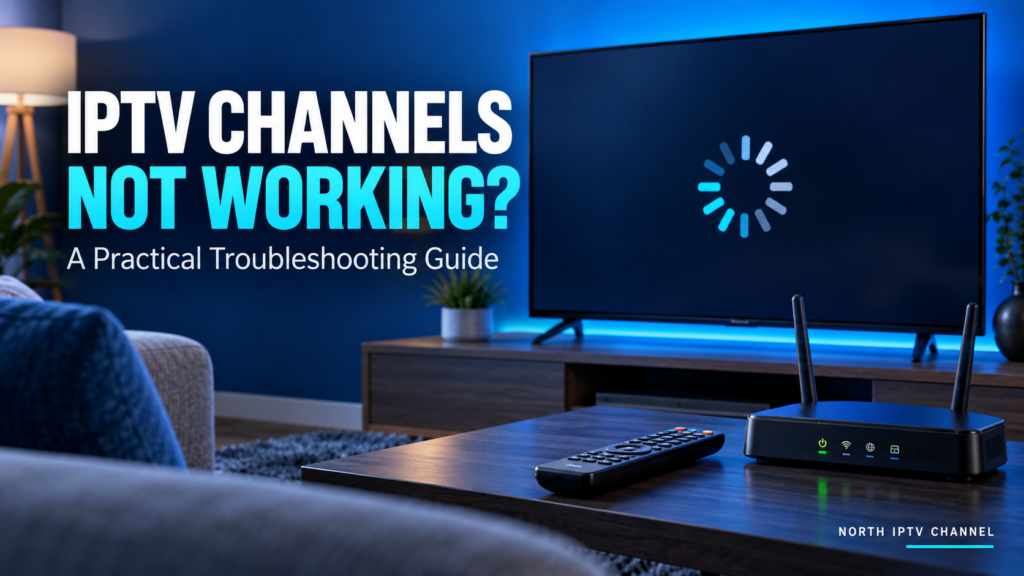
If your IPTV channels are not working, first identify the scope of the problem. Does one channel fail, do all channels fail, or does playback fail only on one device? That distinction helps you separate a stream issue from an account, player or network problem and avoids unnecessary resets.
Work through the checks below one at a time, testing after each change. For initial configuration, use the North IPTV Channel device tutorial. For account or lineup questions, contact support with the exact symptoms.
IPTV channels not working: quick symptom checklist
| Symptom | First useful check | What it can help distinguish |
|---|---|---|
| One channel will not play | Test two other channels on the same device. | An individual stream problem versus a wider failure. |
| Every channel fails | Check another video app, then account status and login details. | Internet access versus service or account access. |
| Only one device fails | Compare the app version and setup with a supported device. | Player or device configuration. |
| Playback buffers intermittently | Check the connection at the streaming device and test a supported wired connection. | Network instability versus stream-specific behaviour. |
| Picture works but guide data is missing | Check EPG coverage and the player’s guide settings. | Guide data versus video playback. |
| A second device cannot play | Stop the first stream and check your active connection allowance. | A connection limit versus a device issue. |
1. Check whether the failure affects one or all channels
Try several channels from different groups. Note the exact names of those that fail and whether they show a black screen, a loading indicator or an error. If other channels play on the same device, a full-device reset is unlikely to be the most useful first action.
Check whether the missing channel is still included in the current lineup. A saved favourite may point to an older entry after catalogue changes. Browse the published channel directory and ask support to confirm the exact feed if needed.
2. Check internet access on the streaming device
Open another video app on the same device. A connection that works on your phone does not necessarily show that the television has a stable connection. If other apps also fail, investigate the device’s network before changing the IPTV account.
Google’s official Google TV troubleshooting guide recommends checking network connectivity, adjusting the connection, updating the system and restarting the device. Use its instructions for Google TV; other platforms have different controls.
For an intermittent connection, check signal strength near the device and whether other household activity coincides with buffering. Where supported, compare playback over Ethernet. Test under normal viewing conditions rather than relying only on a speed result from another room.
3. Restart the player and device
Close and reopen the affected player using your device’s supported controls. If the device is unresponsive or playback still fails, use its normal restart option. A restart and a factory reset are different operations.
For Apple TV hardware, follow Apple’s official restart instructions. Restarting the device can be a useful check, but it does not resolve an expired account or an unavailable stream. Test again and record what changed.
4. Confirm your account and access details
Check whether the subscription or trial is active and whether the player is using the intended account. An “unauthorised” or login error can involve account status, incorrect fields or an unsupported input method; it is not a reason to guess a different server address.
- Compare the supplied address and login fields with the player’s setup instructions.
- Check for accidental spaces or copied punctuation.
- Confirm that the player accepts the service’s account format.
- Ask support whether any account or device registration change is required.
Do not repeatedly replace credentials without understanding the error. Keep private playlist URLs, passwords and account tokens out of public screenshots.
5. Check simultaneous connection limits
If one device works and another cannot start playback, stop the first stream and test the second alone. If the result changes, review the plan’s connection allowance with support. Device compatibility and concurrent viewing are separate plan details.
Also check whether a household member has left a stream playing elsewhere. This is a diagnostic comparison, not permission to exceed the subscription’s limits or share the account beyond its terms.
6. Refresh the catalogue and check player updates
If the service confirms that your account and channels are active, use the player’s documented refresh or reload function. Check for an official app update. Avoid installing modified apps as a troubleshooting shortcut.
Before clearing app data or reinstalling, make sure you have the account details and understand which settings may be removed. Do not perform a factory reset as an early step: it can remove unrelated apps and configuration without addressing the underlying stream problem.
7. Separate guide, audio and video problems
The EPG is missing or shows the wrong schedule
Check the supported guide source, its coverage and the player’s time zone setting. Refresh the guide using documented controls. A missing schedule does not necessarily mean the stream is unavailable.
Video plays without audio
Check mute and volume controls, then compare another channel and another app. If only certain streams have no sound, report that pattern with your device and player details. Use the manufacturer’s audio guidance rather than changing many output settings at once.
Playback freezes or quality drops
Compare several channels and note whether the problem happens at particular times. If the service offers a supported lower-resolution feed, test it as a comparison. Buffering can involve the connection, device or stream, so a single test should not be treated as proof of the cause.
What to send support
A specific report speeds up diagnosis. Send the information below through North IPTV Channel’s contact page:
- Your viewing country and the time of the problem, including time zone.
- The device model, operating system and player version.
- The exact channel names and any error message.
- Whether another app works on the same device.
- Whether the issue affects one channel, all channels or one device.
- The checks you tried and their results.
For example: “At 20:30 in Morocco, three channels showed a loading screen on my Android TV. Other channels and another video app worked. Restarting the player did not change the result.” Include account identifiers only through the provider’s appropriate private support process.
Related setup and account guides
If you are configuring a player for the first time, follow the IPTV channel setup guide. For questions about supported devices or active streams, read how to choose an IPTV channel subscription and confirm the terms of your own plan.
IPTV troubleshooting FAQ
Why does one IPTV channel fail while others work?
Possible explanations include an individual stream issue, a catalogue change or a channel-specific playback incompatibility. Test other channels and ask support to confirm the affected feed before changing your entire setup.
Will faster internet fix every buffering problem?
No. The connection at the device, player behaviour and stream availability also matter. Compare devices and channels, and follow the service’s bandwidth guidance.
Should I reset my TV when channels stop working?
Start with targeted checks and a normal restart. A factory reset removes configuration and may not address account or stream issues. Use manufacturer guidance if device troubleshooting reaches that stage.
Can a missing channel be added by changing the player?
A player cannot guarantee content that the service does not provide. Check your package and use the IPTV channel availability guide to understand what to confirm.
North IPTV Channel
Find a plan for your viewing needs
Explore our IPTV subscription options and compare the plans on our homepage.